LinkedIn is an amazing resource for finding potential customers and researching B2B leads. In particular, Sales Navigator provides advanced search capabilities, helping you to track down the hottest prospects.
As a sales professional, you probably know about this tool already. But do you know exactly what Sales Navigator is capable of, and how to use this tool to the fullest?
In this article, we’re going to take a closer look at every key LinkedIn Sales navigator feature, along with some you might not know about. At the same time, we will also explore some third-party tools that can supercharge your LinkedIn prospecting.
What Is LinkedIn Sales Navigator?
Sales Navigator is a sales intelligence toolkit that is available to LinkedIn Premium subscribers. However, the first question that comes to mind is — “is LinkedIn premium worth it?” It allows sales and marketing professionals to find people of interest and track their professional activity.
In addition to this, Sales Navigator users can save searches, collect profiles and organize them, and send InMail messages to people who are not connections.
Core access to Sales Navigator starts at $99.99/month. You can upgrade to the Sales Navigator Advanced (Team) plan for $159/month, and pricing extends up to $1,600/year for the Enterprise subscription plan. You can reduce these prices by 25% when you pay annually.
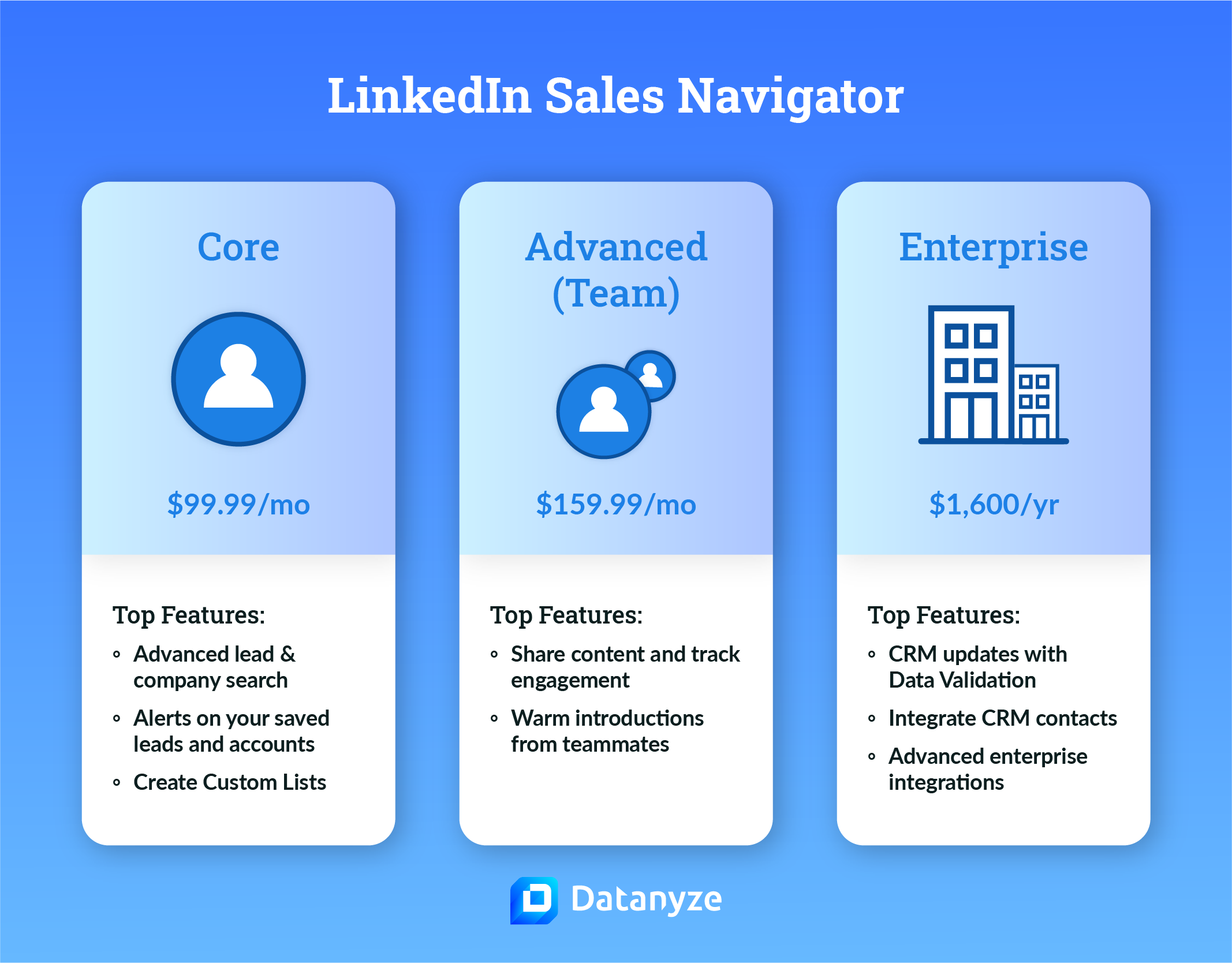
Each of the three tiers comes with a different allowance for seats, searches, saved profiles, and InMail messages.
What Are the Benefits of LinkedIn Sales Navigator?
Mainly used for prospecting and lead generation, Sales Navigator allows sales teams to sort through the world’s biggest professional database using advanced search functionality.
Given that LinkedIn has more than 830 million members, chances are that you will find a good number of B2B leads on the platform. Just as importantly, each person has a profile that offers key information about their work history and current projects — which is very useful intel for sales reps.
There are several other reasons to upgrade from the free version of LinkedIn, as well. For instance, Sales Navigator users can easily save notable profiles and then export that list via CRM integrations.
Sales Navigator also offers lead recommendations, and sales insights — more on these features later!
Is Sales Navigator Worth It?
If you’re in the business of B2B sales, upgrading to Sales Navigator is almost certainly worth it.
While there may be other ways to reach the same leads, none is going to be as straightforward and fast as using Sales Navigator. Plus, there’s a good chance you will unearth some contacts you would never have discovered otherwise.
13 Sales Navigator Features You Need to Try
No matter which plan you choose, Sales Navigator is stacked full of features that can help you find new clients. But unless you’re a seasoned LinkedIn veteran, you probably won’t know them all.
To help you take your sales prospecting to the next level, we decided to walk through all of our favorite Sales Navigator features, from the most obvious to the hidden gems:
1) Advanced Search Filters
Let’s start with something familiar.
Perhaps the most popular feature of Sales Navigator is advanced search. LinkedIn offers more than 20 search filters, allowing you to be very specific about your target audience.
The advanced search works on both people and companies. Some of the most useful filters for individuals include:
- Title – Job title, that is
- Keywords – Specific words in their profile
- Geography – Where they are based
- Seniority level – Similar to title, but more comprehensive
If you’re trying to track down a specific type of business, you can use advanced search filters such as:
- Company size – Overall number of employees
- Company revenue – How much are they making?!
- Industry – Such as tech or marketing
- Fortune – Are they top 500, top 100, or top 50?
Along with helping you to target your outreach, this feature allows you to create narrow segments for better personalization.
2) Find People in LinkedIn Groups
LinkedIn Groups are potential gold mines for sales reps. Where else can you reach thousands of professionals, all interested in the same topic?
As a regular LinkedIn member, you can search for relevant Groups with keywords. But with Sales Navigator, you can track down individual LinkedIn users who are members of specific groups.
You can access this feature through the advanced search tool, under Other filters.
This option allows you to venture outside the built-in filters, and reduce your target area to an even smaller number of leads, all of whom share very specific professional interests.
3) Boolean Searches
Aside from advanced filters, the Sales Navigator search function has another trick to offer: Boolean rules.
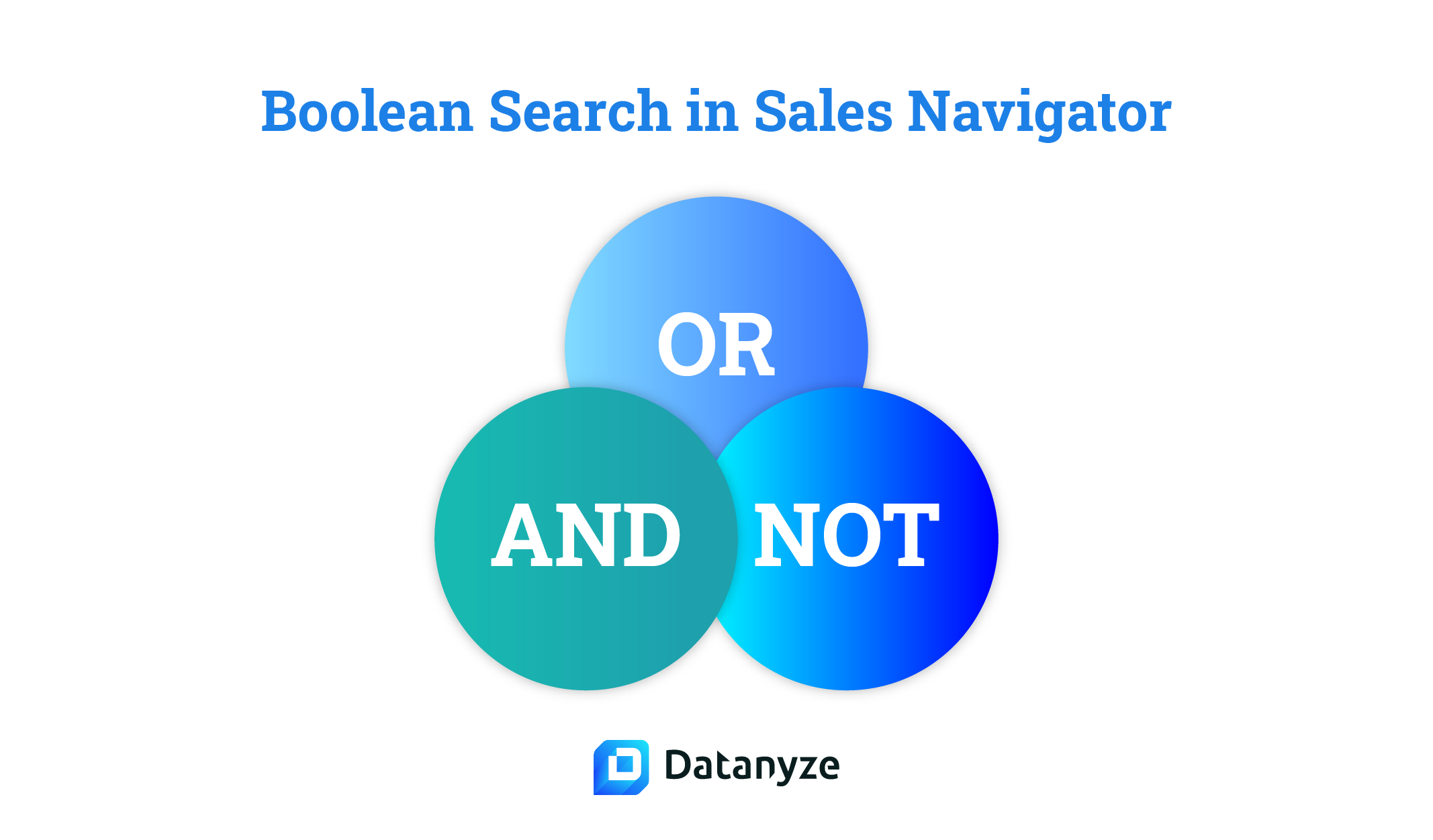
If you’re not familiar with this term, it basically refers to logic. Using the search operators AND, NOT, and OR, you can tell LinkedIn exactly which kind of profiles or company pages you want to find.
This feature can help you to weed out irrelevant results and find the LinkedIn accounts that match all your key criteria.
4) Save Searches
Whatever type of search you utilize, there is a fair chance you will want to revisit it at a later date.
As a user, you have the opportunity to save searches for easy access — no matter how many filters you have selected!
You can access all of your saved searches via a button to the right of the advanced search bar in Sales Navigator.
5) Save LinkedIn Profiles
As you begin to find new leads that match your buyer personas, you will probably want to start saving them as contacts for later outreach.
With Sales Navigator, you can save up to 25 profiles at a time from any search or company page, and store up to 10,000 in total. The full list is then available to view by clicking Lead lists followed by My saved leads.
Top tip: With Datanyze, you can find accurate contact information in seconds, for every lead you save.
6) Tag Profiles
Of course, creating a database of thousands of unordered contacts isn’t particularly useful. To help you bring come clarity to your work, Sales Navigator allows you to add custom tags to the profiles that catch your eye.
There are many different ways to use tags; for instance, you can label leads based on priority or industry. Some salespeople also use these features to highlight the right decision makers, and to point out influencers who could set up valuable connections.
Note that tags can only be seen by you, so you can operate with stealth!
When you later search on the platform, you will also have the option to filter the results by tag.
7) Add Notes
While tags can provide useful information about a contact, they might not be able to reveal the whole story. But as a Sales Navigator user, you can record extra information by attaching a private note to any lead or account.
This feature is particularly useful for sales teams. Instead of having to leave notes for your coworkers on a separate platform, you can keep the vital info connected with the relevant account.
8) CRM Sync and Integrations
One of the biggest benefits you unlock when upgrading to Sales Navigator is the ability to connect your LinkedIn account to your CRM.
LinkedIn offers deep integration with Microsoft Dynamics, Salesforce, and now HubSpot, along with support for Oracle CX Sales, Pega, SAP, and SugarCRM..
On all of the platforms mentioned above, CRM Embedded Profiles allows you to view information and real-time insights from LinkedIn within your CRM interface.
In addition, CRM Sync automatically imports accounts and leads on LinkedIn that have matching profiles in your CRM. This feature is available exclusively on Dynamics and Salesforce.
Top tip: If you use a different CRM, you can still export custom lists of leads to CSV files, and import the data via an automation tool such as Zapier.
9) LinkedIn InMail
Normally speaking, LinkedIn only allows you to send direct messages to connections. This can be pretty limiting if you’re trying to reach out to new leads. Sales Navigator lets you get around this restriction by sending InMail.
The number of InMail messages you can send each month is limited to 50, although you get a credit back whenever someone replies within 90 days of receiving your message.

InMail isn’t a replacement for email, but it can be a useful additional channel for delivering a warm introduction, a two-sentence pitch, or a quick follow-up.
10) Lead Recommendations
Along with better search functionality, LinkedIn helps you to find potential customers through lead recommendations.
You can see these suggestions on any profile, or view one hundred potential clients by navigating to Lead Lists, and then Recommended Leads. The algorithms do a great job of hunting down people who match your target audience, guided by your sales preferences.
LinkedIn can also provide suggestions based on your search criteria. When you find a rich seam, you can hit View Similar, and Sales Navigator will rustle up some profiles or accounts that have similar characteristics.
11) View Connections With TeamLink
If you subscribe to Sales Navigator on the Team or Enterprise plan, you will get access to a feature called TeamLink.
This adds the option to filter your search results, so that you see profiles and accounts that are connected to someone in your sales department. You can see who has the connection, too.
This feature has the potential to be very valuable, because routing your outreach through a 1st connection gives you a far better chance of being seen. Plus, it tells you which reps might already have some kind of working relationship with a particular lead.
12) Smart Links
One of our favorite sales tools that comes with Sales Navigator is Smart Links.
This feature lets you put together pitch decks, product documentation, growth projections, and more into a single pack. You can then share the whole thing through a trackable link, which works in any channel.
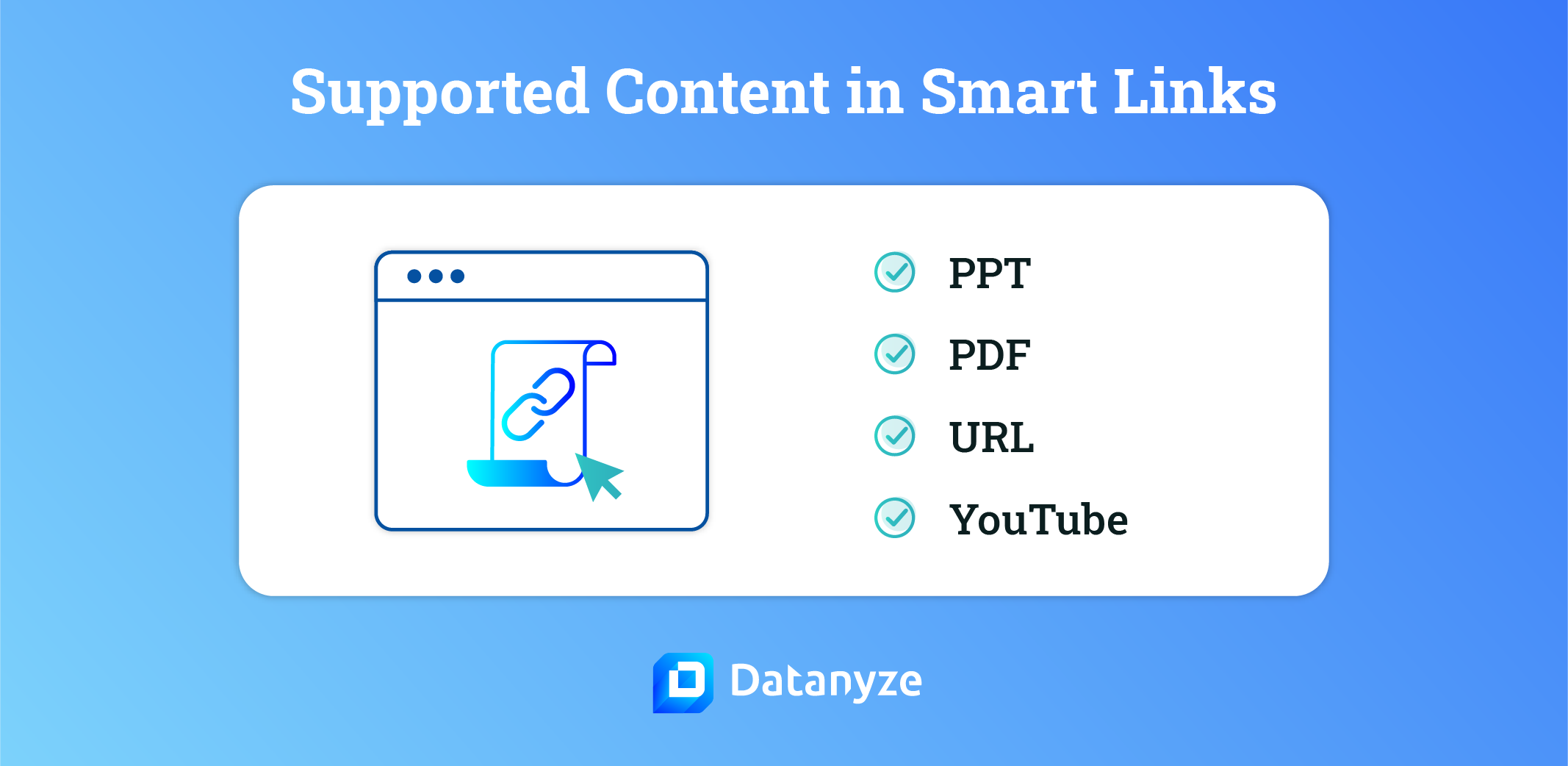
Of course, this is not unique — you can host documents and get the same kind of engagement insights using Dropbox, for example.
The difference is, Smart Links works in combination with CRM Sync. This means that all that tracking data is fed straight into your CRM, so you can see exactly how potential buyers are interacting with your content.
13) Sales Navigator Alerts
Whenever an individual takes on a new role — particularly a management position — there is a fair chance they will want to make some changes. For instance, they might be open to new suppliers, or tools for getting things done.
Similarly, people who move from one company to another may suddenly have a much bigger budget at their disposal. That’s pretty good news if you’re a sales rep.
Sales Navigator helps you to jump on these opportunities by flagging up anyone who has changed their job title or company. But that’s not all.
Sales Navigator Alerts can also send you a notification if a lead looks at your profile or engages with one of your posts, and if an account has raised money.
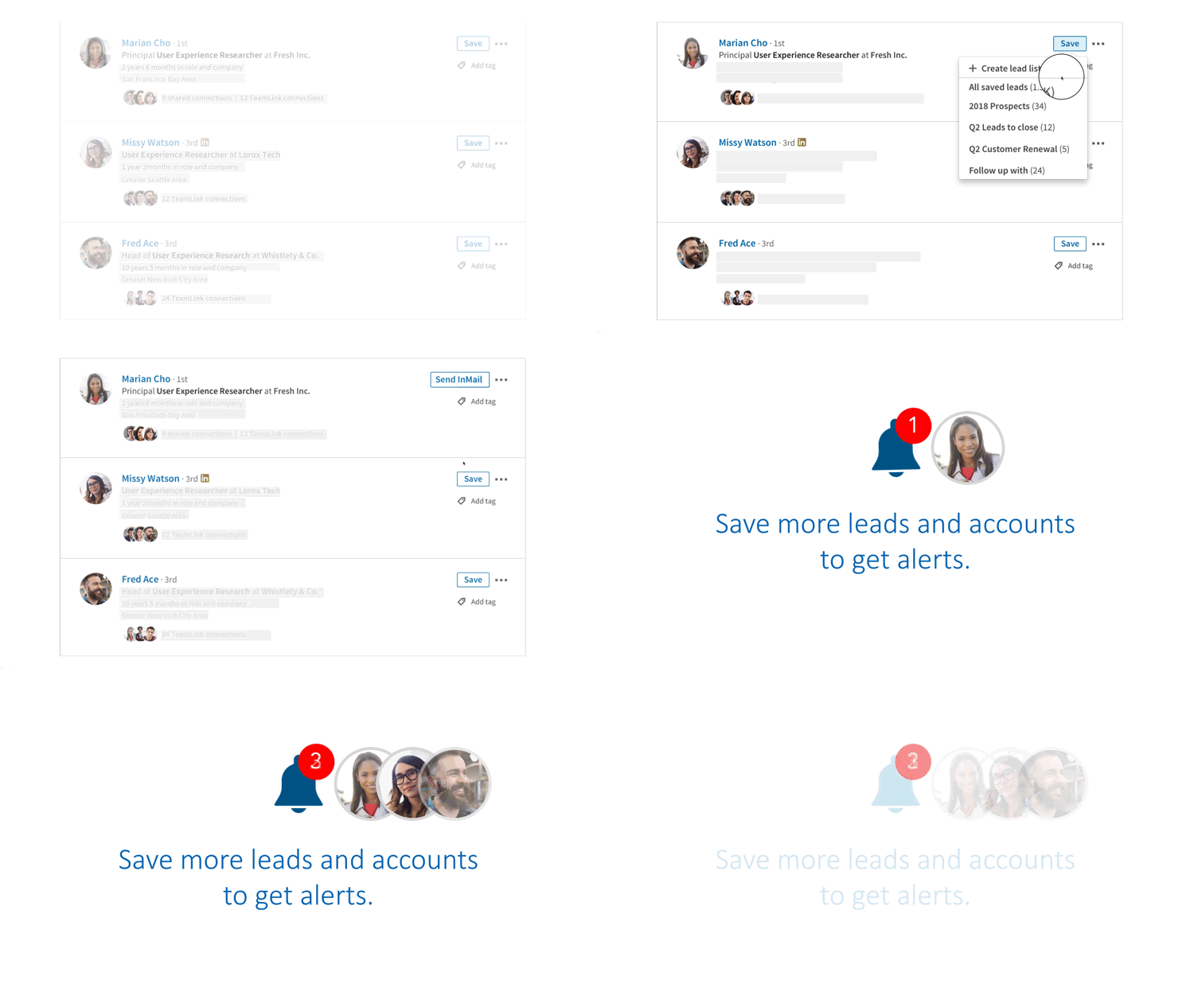
Not only is this information potentially very valuable, but the notification system means you can make a move at the right time — whether that’s getting in touch with a lead with money in the bank, or following up when someone checks out your profile.
Key Tips for Getting the Most out of Sales Navigator
If you take into account the many features mentioned above, any team that has access to Sales Navigator has quite a toolkit. However, learning how to harness these tools can take time.
Here are some proven tips to get you going in the right direction:
Build Rapport With the “Share experiences with you” Filter
One of the many options in Advanced Search, this filter helps you find potential leads who have something in common with you. This could be anything from sharing an alma mater to previously working for the same company — but it could give you an advantage when you want to build rapport.
Create a Custom Outreach Template
LinkedIn lets you build templates for outreach via InMail, and you can personalize them using tags that are linked to filters. For example, your message could include {first_name}, {your_industry}, and {your_city}.
Optimize Your Profile
While Sales Navigator is great for reaching out to new prospects, it can also help you to attract interest. Team and Enterprise accounts rank higher in search results, and they get bigger profile photos; use this to your advantage by optimizing your own profile for sales.
Upgrade Sales Navigator With Third-Party Tools
Aside from the built-in CRM integrations, you can upgrade your workflow with various third-party tools. For example, using Datanyze alongside Sales Navigator allows you to grab accurate contact information for any individual while you’re looking at their profile. This means you can take your outreach campaigns beyond InMail.
Enhance Your Sales Data With Datanyze
Whether you decide to use Sales Navigator or not, Datanyze can massively improve the efficiency of your sales process.
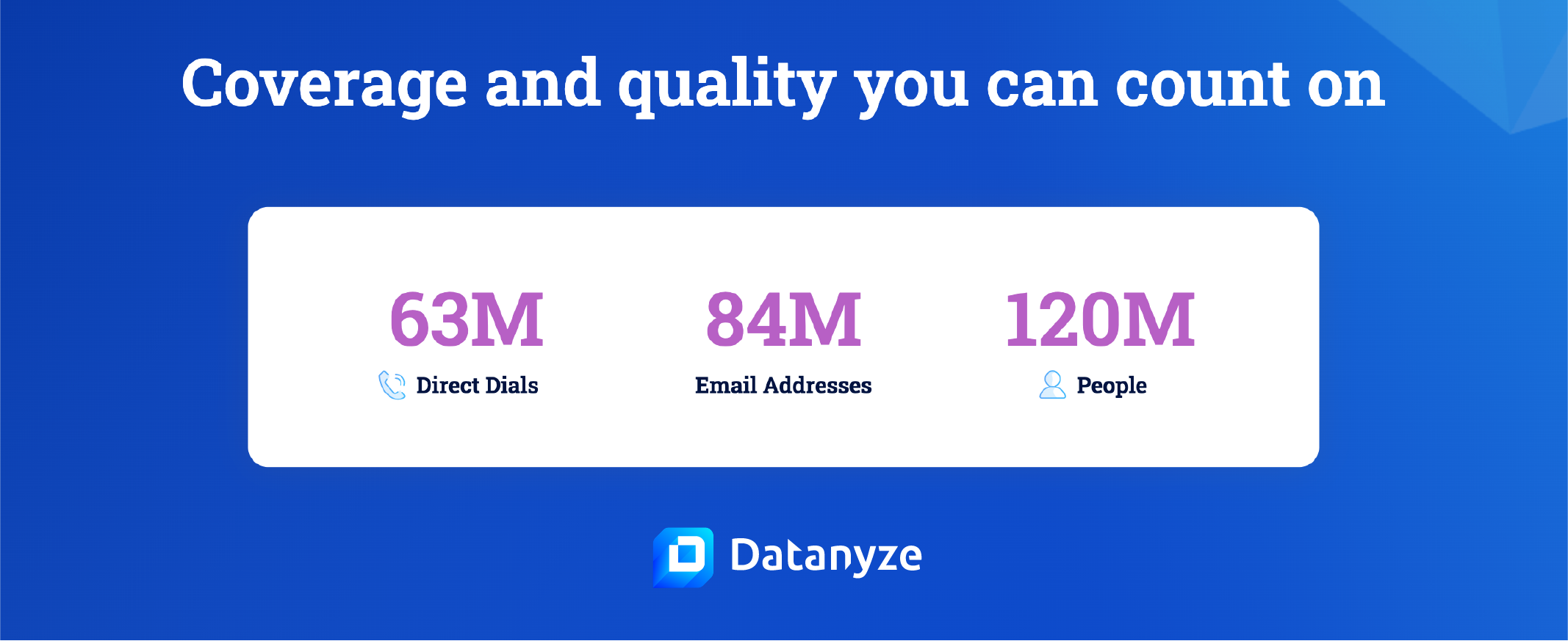
Our easy-to-use Chrome extension helps you track down vital data on 120 million professionals, with email addresses and direct dial phone numbers. It reveals plenty of other useful information, too — like recent company news and technographics.
Sign up today to give it a try and take Datanyze for a free 90-day test drive.
